
In my last article I explained what Passkeys in Entra ID are. I advise you to go and read the article to choose the right option for your environment.
Microsoft recommends FIDO2 security keys for highly regulated industries or elevated-privilege roles. Synced passkeys may be a convenient low-cost alternative for broad workforce adoption depending on your policy requirements.
In this article we will understand how to implement Passkeys with Entra ID navigating through all the steps needed for the implementation.
Prerequisites (what to check before enabling)
Tenant prerequisites:
- You need at least the Authentication Policy Administrator role to configure Authentication methods policies.
- If you plan to enforce passkeys with Conditional Access authentication strengths, Conditional Access requires Entra ID P1 licensing
User + device prerequisites:
- Users must complete MFA within the past 5 minutes before they can register a passkey (FIDO2)
- Windows guidance: best experience for Entra-joined is Windows 10 1903+, and hybrid-joined needs Windows 10 2004+
- For Microsoft Authenticator passkeys, the mobile device needs iOS 17+ or Android 14+
- Platform/browser specifics and constraints are documented in the Entra passkey compatibility matrix.
FIDO2 specific:
- Every FIDO2 vendor (key or device) must provide an Authentication Attestation GUID. To be eligible for the use in Entra ID, the passkey must have an associated AAGUID. You can work with your vendor in case of issue on this matter.
Enable Passkey (FIDO2) authentication in Entra
In the Entra admin center:
- Go to Entra ID > Authentication methods > Policies
- Under Passkey (FIDO2), set the toggle to Enable
- Select All users or Add groups (only security groups are supported)
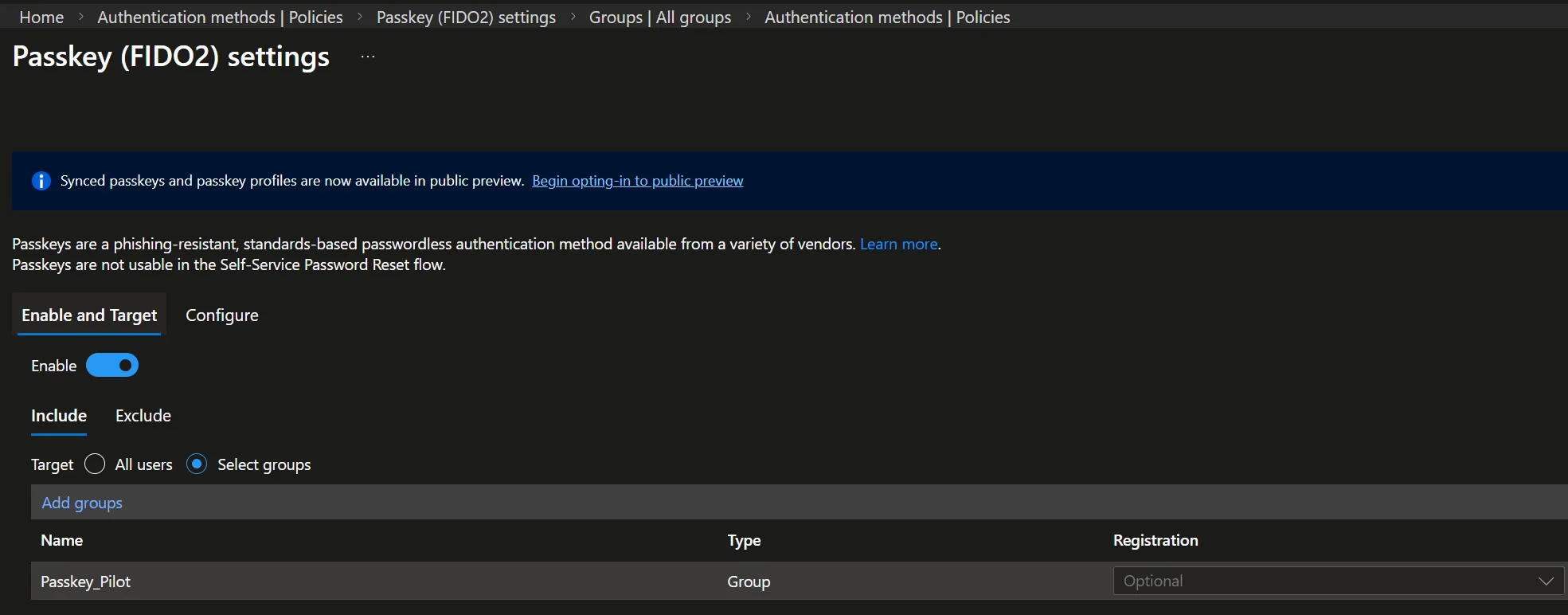
the “registration” setting can be ignored, we will manage the enforcement of passkeys using Conditional Access policies.
Now configure the key policy controls:
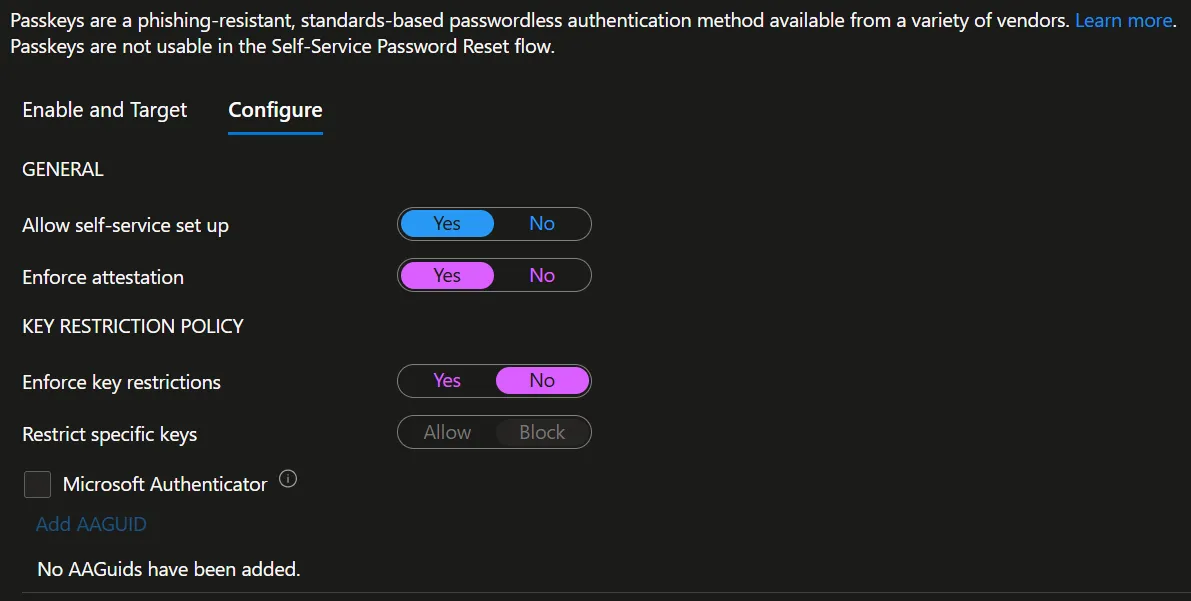
- Allow self-service set up = Yes. If it’s No, users can’t register a passkey via Security Info even if passkey are enabled, you’ll need to register a passkey for the users manually
- Enforce attestation: if Yes, only methods supporting attestation can be used (note that synced passkeys do not support attestation)
- Key restriction: to restric certain keys vendor or types using AAGUID
Create multiple profiles for different user- persona
At the time I’m writing this article the creation of multiple FIDO2 profiles is available only in public preview, to have it available browse to:
Entra ID > Security > Authentication methods > Policies > Passkey (FIDO2)
and select “Begin opting-in to public preview”
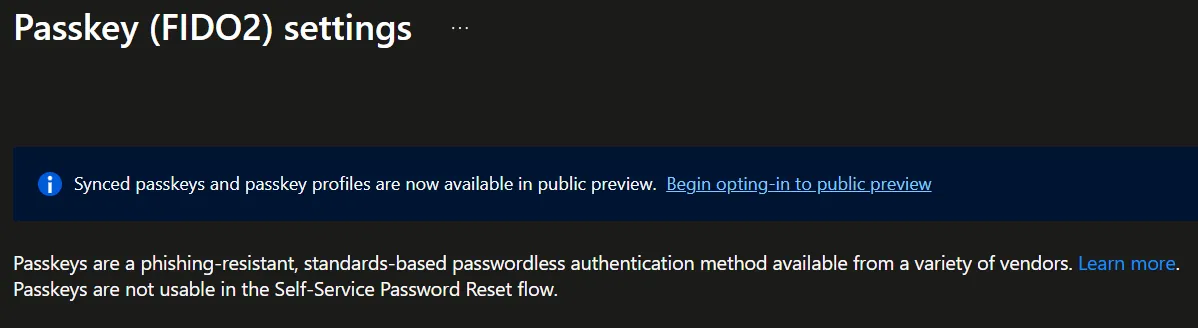
My advice is to create at least two different profiles. One for default users and the other one for users with admin privileges. The profile with the admins as target should enforce attestation
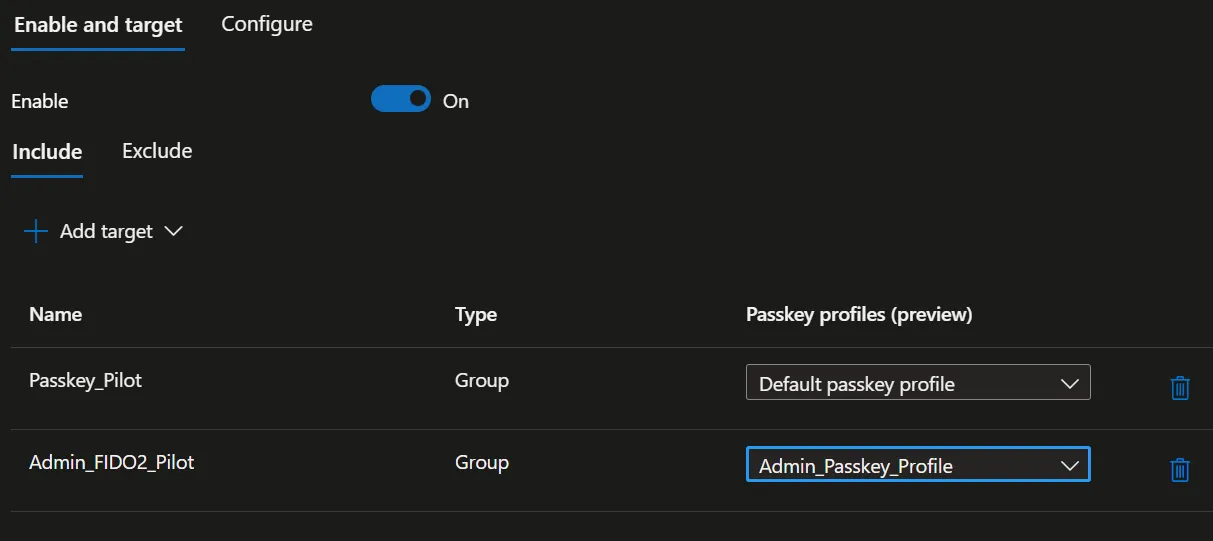
Passkeys compatible with attestation are more secure, but since attestation is not compatible with synced passkeys, it will require the use of physical passkey, resulting in higher operational costs.
Bootstrap and recovery with Temporary Access Pass (TAP)
A common adoption blocker is the “chicken-and-egg” onboarding: how does a user register a passkey if they can’t satisfy strong auth yet?
Microsoft documents two supported ways to bootstrap passwordless methods:
- Use existing Entra MFA methods, or
- Use a Temporary Access Pass (TAP) a time-limited passcode that can be single-use or multi-use
Using a TAP for passkey registration is more secure, I will advise on using this method for the registration phase. Read this Microsoft article to understand how to enable TAP for passkey registration.
Enforce passkeys using Conditional Access (Authentication Strengths)
Once passkeys are enabled and piloted, my advice is to use Conditional Access Policies to decide when, where and why FIDO2 authentication will be required to end users, using the setting “Authentication strengths“:
- Authentication strength is a Conditional Access control that specifies the allowed combinations of authentication methods.
- You can create a custom authentication strength and include Passkeys (FIDO2).
Conclusions
We saw How to implement Passkey with Entra ID, nowadays, with attacks targeting identity constantly on the rise, enabling passkeys and phishing resistant authentication is a must for every organization.
To prevent potential issues, carefully plan the deployment process. Implement a staged rollout strategy and stay aware of constraints and known limitations.
- Guest users (B2B): Entra notes passkey (FIDO2) registration isn’t supported for internal or external guest users (including B2B collaboration users) in the resource tenant.
- UPN changes: if a user’s UPN changes, Entra states the user may need to delete the old passkey and register a new one via Security info.
- Key restriction changes can lock users out: removing previously allowed AAGUIDs can prevent sign-in with those keys.
Since passkeys are a wide argument that can hardly be summarized in one article, see some Microsoft documentation on this topic:
- Enable passkeys (FIDO2) for your organization — learn.microsoft.com
- Passkeys (FIDO2) authentication method overview — learn.microsoft.com
- Register passkeys in Authenticator — learn.microsoft.com
- Register a passkey (FIDO2) (Security info flow) — learn.microsoft.com
- Passkey (FIDO2) compatibility matrix — learn.microsoft.com
- Custom authentication strengths (AAGUID advanced options) — learn.microsoft.com
- Temporary Access Pass — learn.microsoft.com